
You are reading a Mermaid diagram
as source code.
FlowPeek draws it where you already are — a docs page, a pull request, your editor.
A macOS menu-bar app. Free, open source, and it draws without sending anything anywhere.
brew install --cask flowpeek/tap/flowpeek
More ways in
Drag over it
Select Mermaid in any app and a small button appears beside the selection.
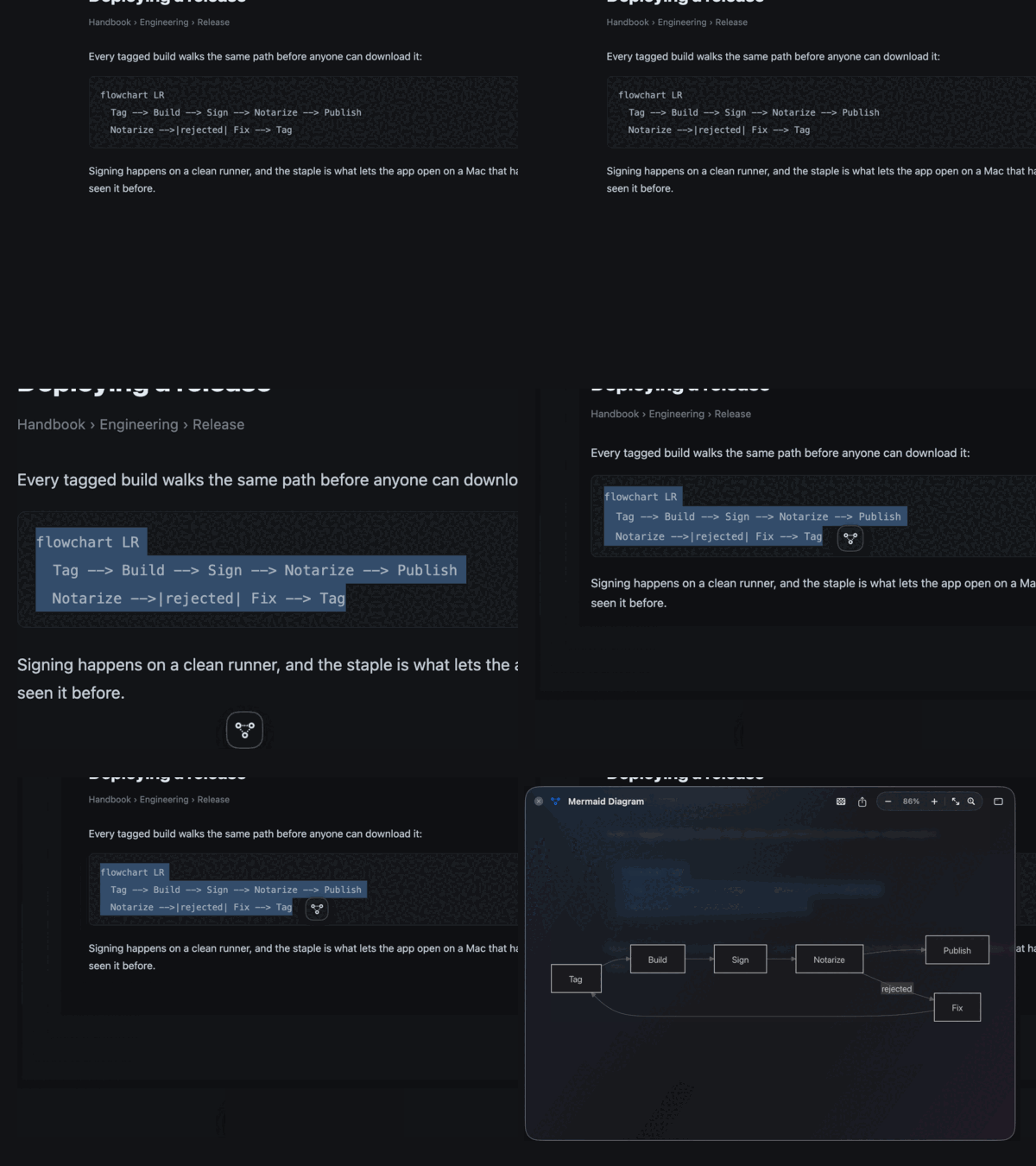
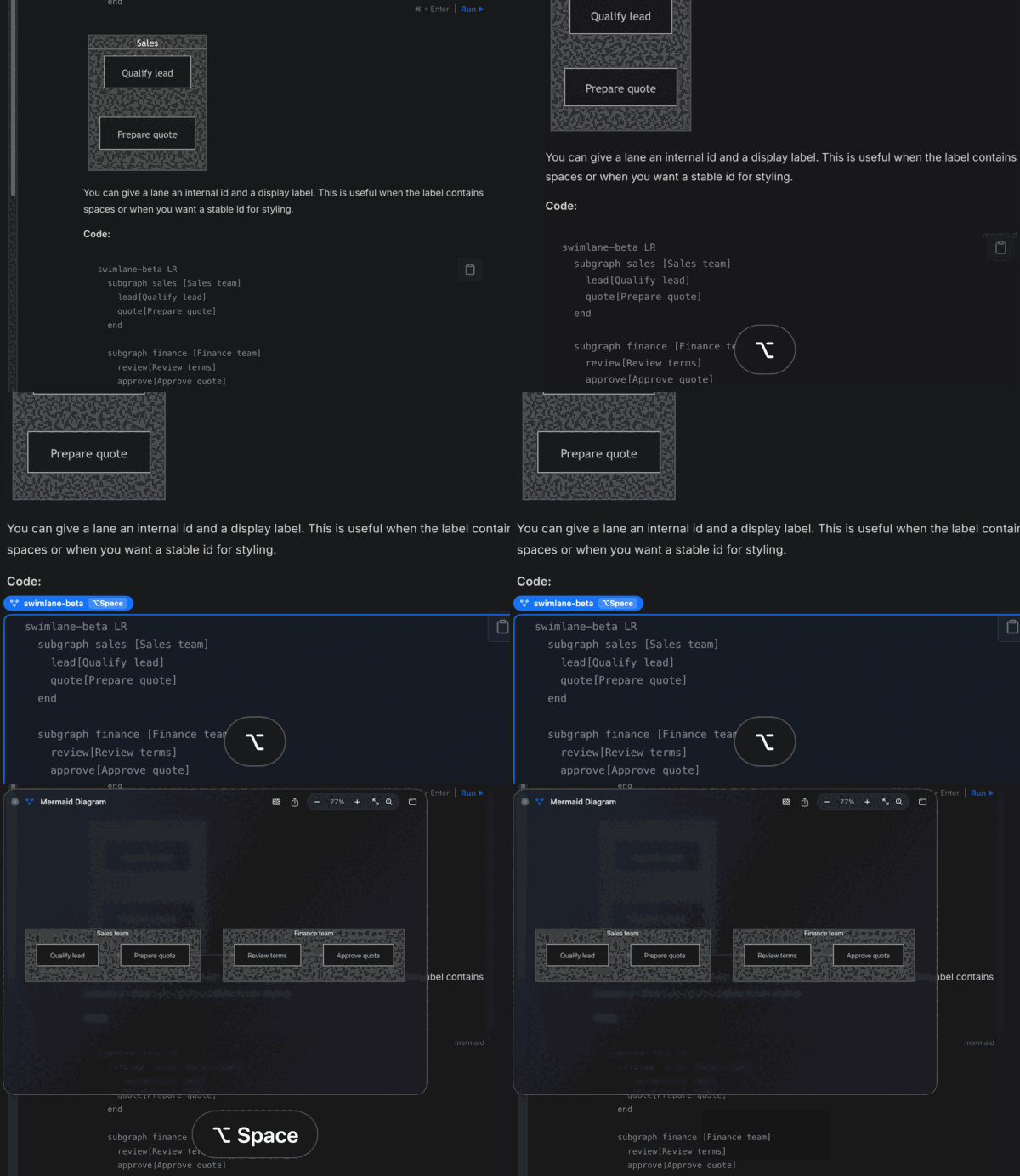
Point at it
Hold Option and move the pointer. The block is outlined where it sits; Space draws it.
Copy it
A badge appears near the menu bar and names the key that opens it.

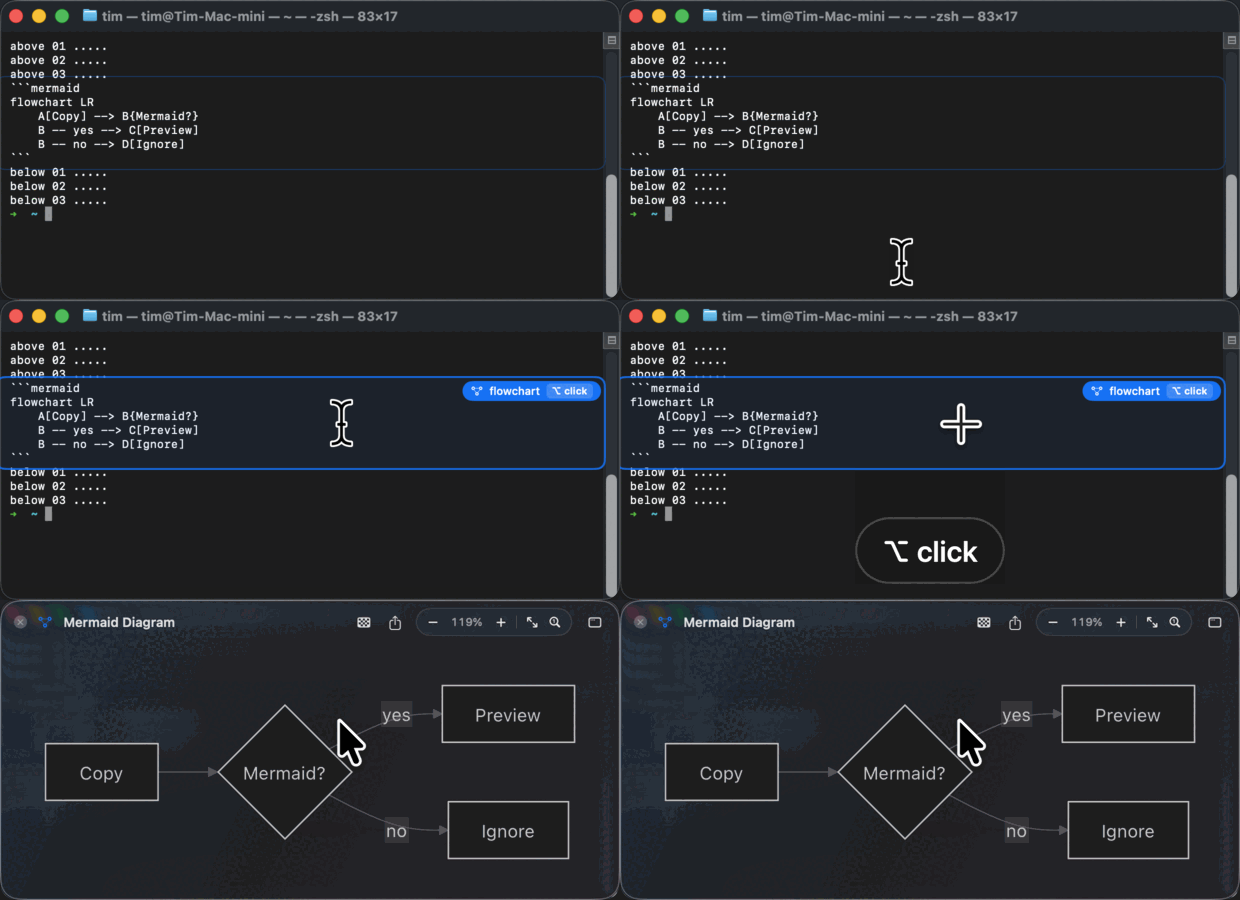
Print it in a terminal
A diagram in Terminal, iTerm2 or Ghostty gets a faint frame where it sits — printed at the prompt, or inside a full-screen program like vim or a coding agent. The pointer brightens it; hold Option and the block opens on a click.
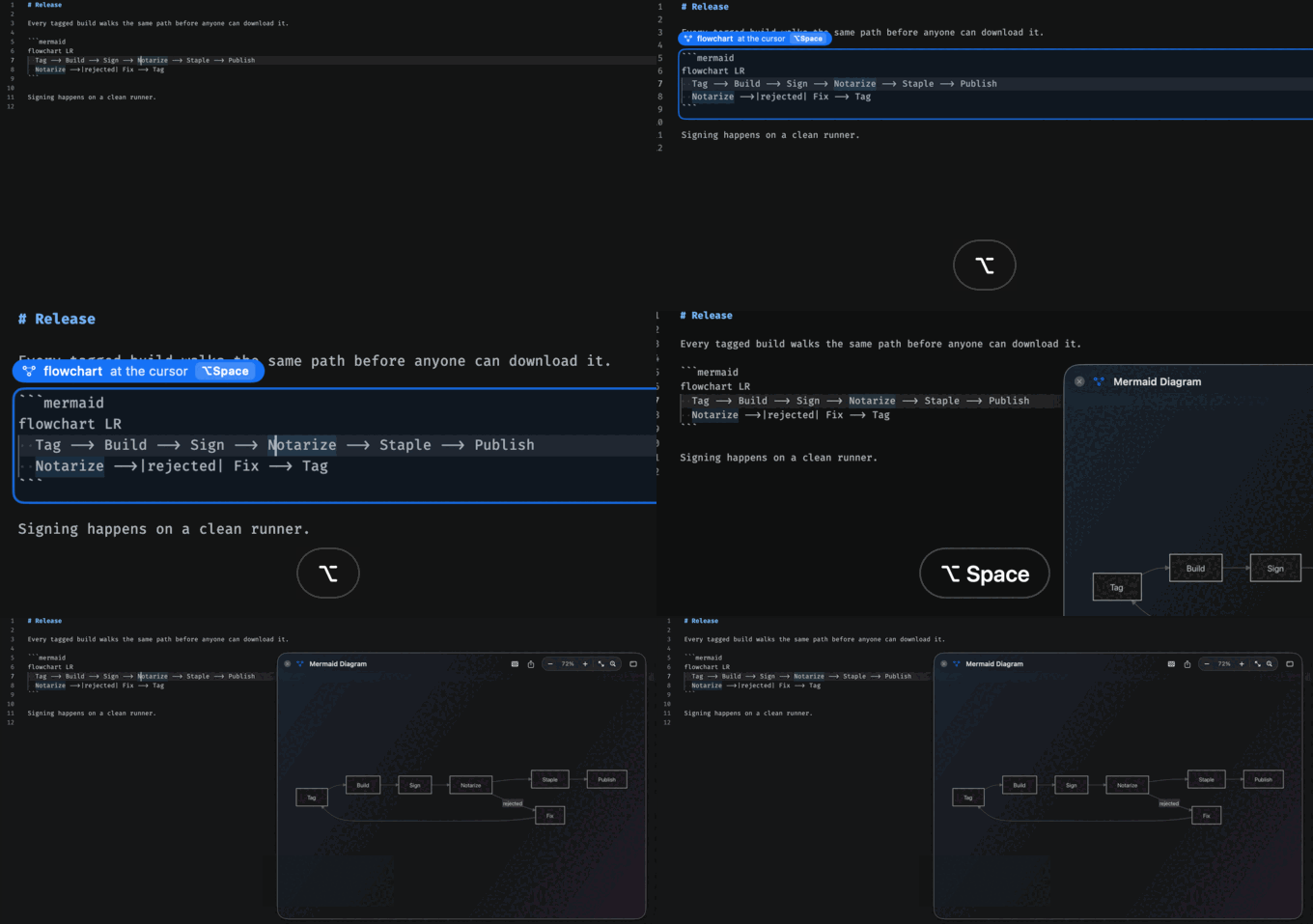
Editors, too
In Finder
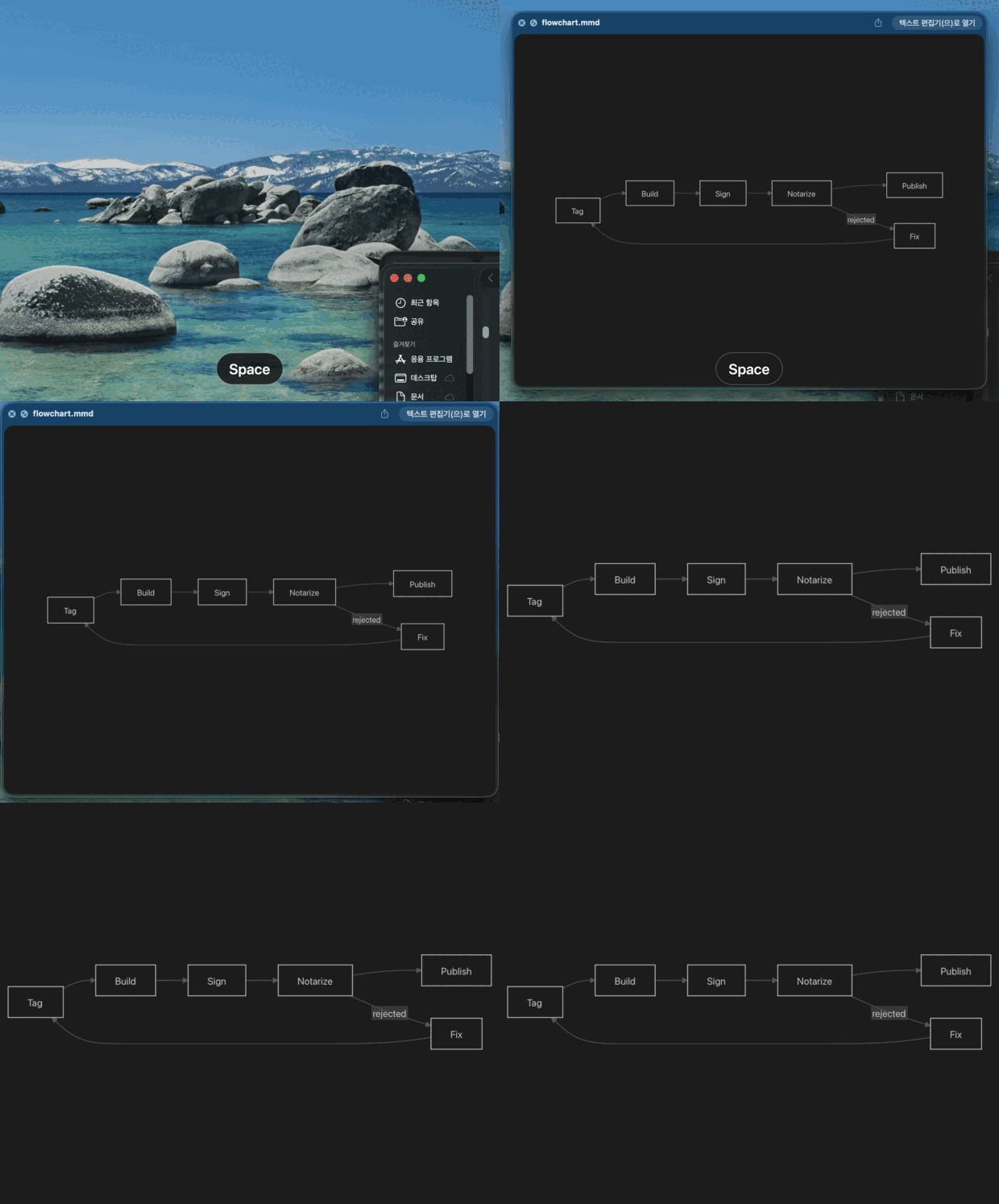
.mmd file, or double-click it to open a preview window.Come back to one

What it does not do
- No network. Mermaid is bundled, so drawing a diagram makes no request at all.
- No logging. The text you point at, and the terminal buffer around a diagram on screen, are read into memory and never written down. The diagrams it actually draws are kept on your Mac so the shelf can offer them back — capped by count, by age, or switched off entirely.
- One permission. Accessibility, because reading the text you are pointing at is the whole feature. Say no and copying still works; the app says so instead of pretending to be broken.
- No account, no telemetry, no upsell. MIT licensed.